

How do I customize an invoice template to show transactions and payments?
You can customize Zuora invoice templates to present billing information to your customers based on your company's requirements. This information can range from a simple summary to itemized details including usage information on the billing invoice. Zuora gives you the flexibility to customize and save multiple invoice templates and then assign any one of the templates to a customer account.
Using multiple and custom invoice templates is useful if you have different types of customers and your customer accounts are categorized in some way that requires different invoice information for each category. For example, you might want to have a different invoice for enterprise versus small and medium size businesses, a different invoice for a customer in the United States versus in Europe, or have a special invoice template for customers that require specific needs (such as non-standard information on their invoices). You can also customize invoice templates to include company logos and other graphics.
Information about invoices
The following information will help you better understand invoice templates in Zuora:
- You can create multiple invoice templates.
- You can select which invoice template each Customer Account uses (under Billing and Payment Term).
- Microsoft Word is used to customize invoice templates.
- Invoices are produced and saved in PDF and Microsoft Word format.
- An invoice can display data from hundreds of fields from over a dozen Zuora objects.
- An invoice can display data from custom fields from eight Zuora objects.
- Microsoft Word Mail Merge fields are used to display Zuora object field data.
- You can customize the way the Zuora object field data is displayed. For example, sort, font, date format, and number format.
- You can use the TableStart and TableEnd Mail Merge fields to display multiple lines for certain Zuora object fields.
- Zuora provides pre-built sample invoice templates which contain all merge fields grouped into tables including a Transaction Table, a Previous Transactions Table, and a Payments Table.
Solution
Zuora allows you to create custom invoice templates, and then assign the template to a customer account.
To create a custom invoice template, complete the following steps:
- Start with Zuora's pre-built sample invoice template. Click your username at the top right and click Billing.
- On the Billing Settings page, click Manage Billing Document Configuration and download the sample invoice template.
- Modify the sample invoice template:
- Move, remove, sort, filter, and format fields.
- Add custom fields.
- Add a company logo and message.
- Save the invoice template on your computer with a new name, using the
.docextension. - Upload and use your modified invoice template.
- Click your username at the top right and click Billing.
- On the Billing Settings page, click Manage Billing Document Configuration.
- Click Add new template to upload your new invoice template, and click Preview to view the way your invoice template looks.
- Use your new invoice template by adding it to a customer account's Billing and Payment Terms and generating an invoice for such customer.
- Go to Customers > Customer Accounts.
- Open the account detail page for the target customer.
- In the Billing and Payment Info section, select the appropriate template for the Invoice Template field.
Account statement
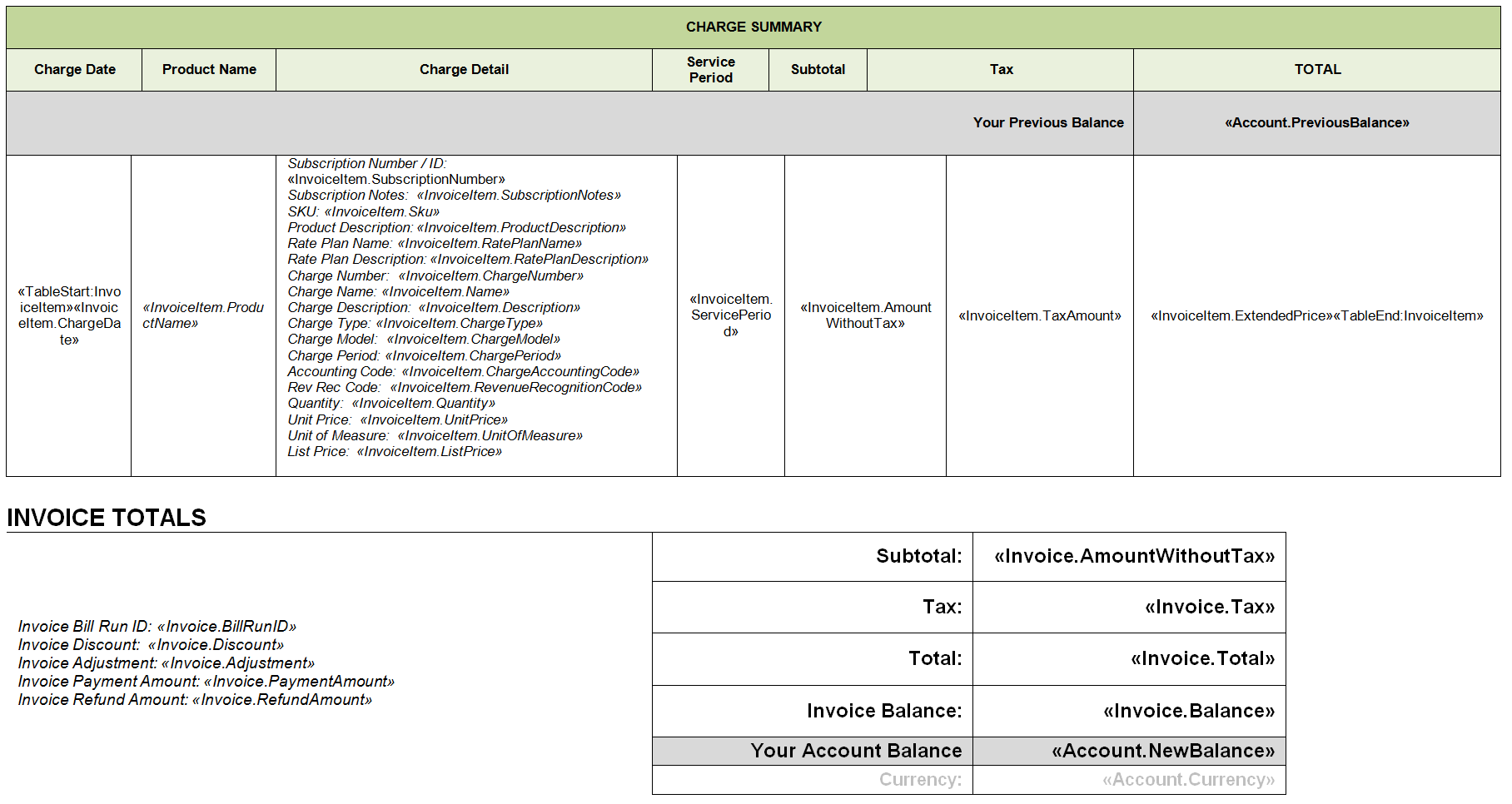
Zuora does not produce account statements. Zuora invoice templates can be customized to have the look, feel and information of an account statement. You may set up your invoice template to include account balance information that is useful for creating statements. There are two fields that you can use to configure your invoices to show full statement information, including the previous account balance, and new balance based on the application of charges on the invoice.
- Account Previous Balance: This is a dynamically calculated field that represents the account balance before an invoice is posted. For example, if an account had one previous invoice with an outstanding balance of $100, and generates a new invoice for $75 showing the Account Previous Balance, this field would show $100 when displayed on the new invoice.
- Account New Balance: This field represents the balance on an account after the invoice has been posted. In the previous example, the Account Previous Balance was $100, the invoice balance of the invoice is $75, so Account New Balance is ($100 + $75) = $175.
Invoice history
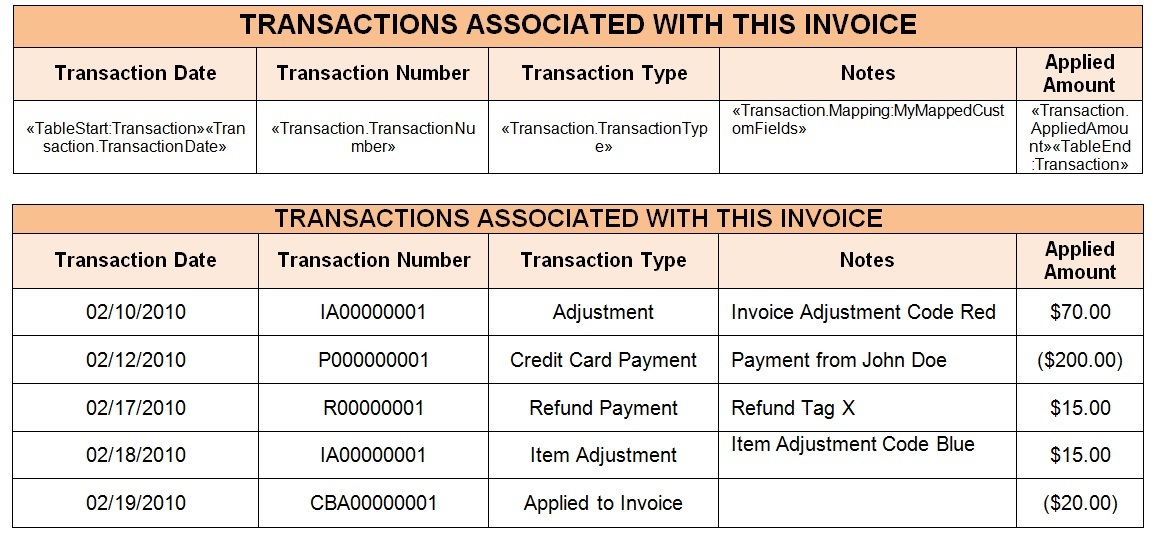
You can include a transaction table on your invoice template to show your customer all the transactions (payments, adjustments, and refunds) which have been applied to the invoice. Using the Original Invoice Total (Invoice.Total merge field), the Transaction Table, and the Current Balance (Invoice.Balance merge field), you can provide your customers with a full view of their invoice’s history. We recommend that you use this Transaction Table instead of the separate Payments and Adjustments table on your invoices in order to show the complete view of all transactions.
For further customization details and an appendix of all the available Zuora objects and fields, click your username at the top right and then click Billing > Manage Billing Document Configuration. Download the instructions from the link on that page to learn how to further customize your invoice templates.