

How do I cancel or downgrade customers to avoid issuing a credit or refund?
Overview
Some businesses want cancelations or downgrades to take effect without issuing credits or refunds upon the cancelation or downgrade.
When canceling products, downgrading products, or canceling subscriptions you must take care to execute the changes at the end of the billing period or end of term in order to not generate a credit or refund.
Solution
Cancelations occur at the individual product level or across the entire subscription and are performed via the UI or API.
Cancelling or Downgrading a Product: No Refund
Use the following steps to cancel individual products instead of an entire subscription. See the next section, "Cancelling a Subscription: No Refund," to cancel an entire subscription.
Cancel or Downgrade Product: No Refund using the Zuora UI
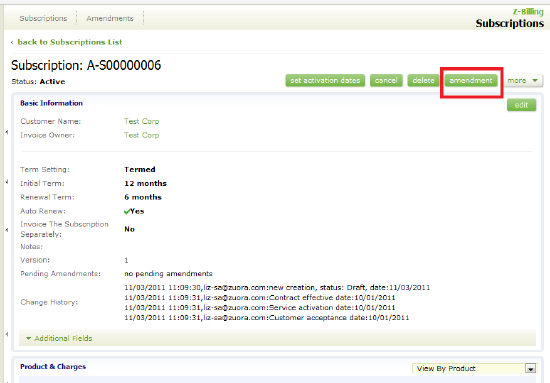
- Click on the subscription you want to change.
- Click on the Amendment button.
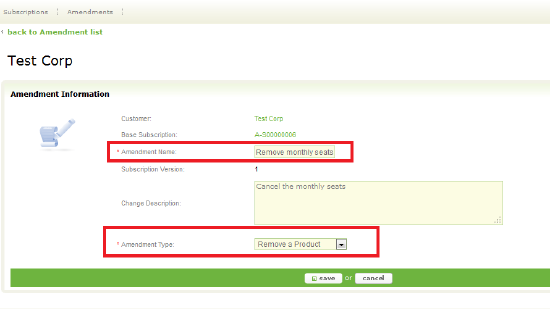
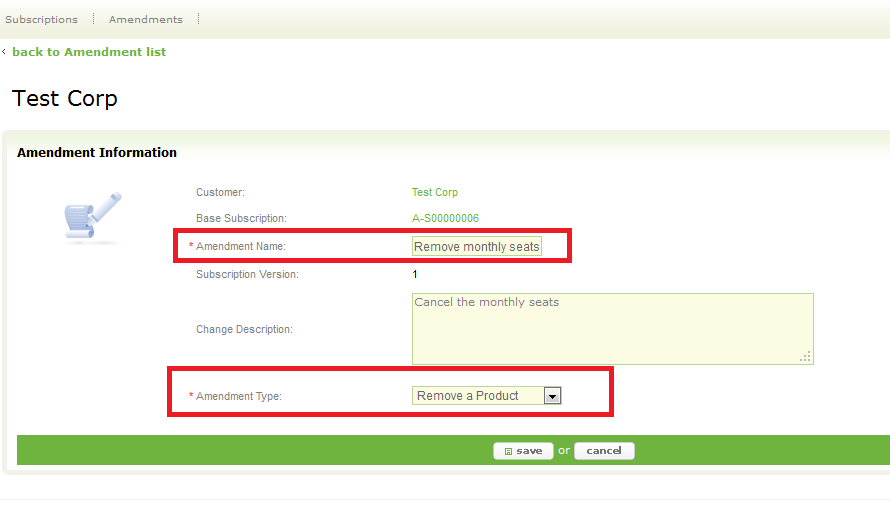
- Enter in an Amendment Name, Change Description (optional).
- Select Remove Product from the Amendment Type drop down, and click Save.
- Select Remove Product from the Amendment Type drop down, and click Save.
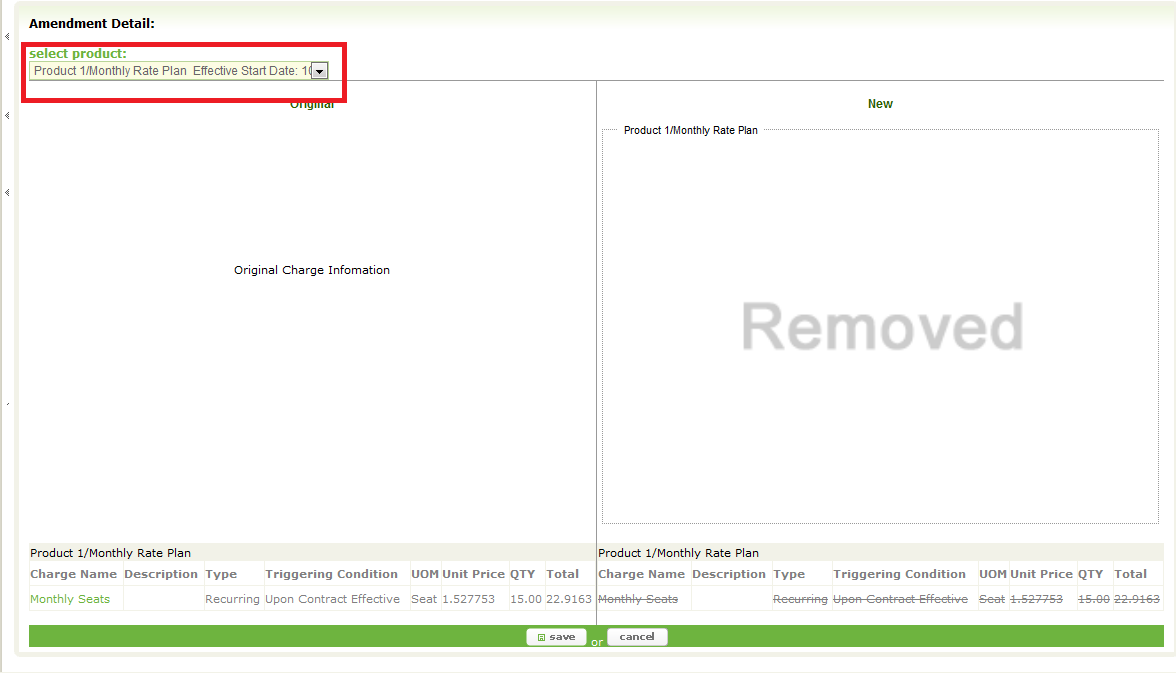
- Using the Select Product drop down, choose the product you want to remove and click Save.
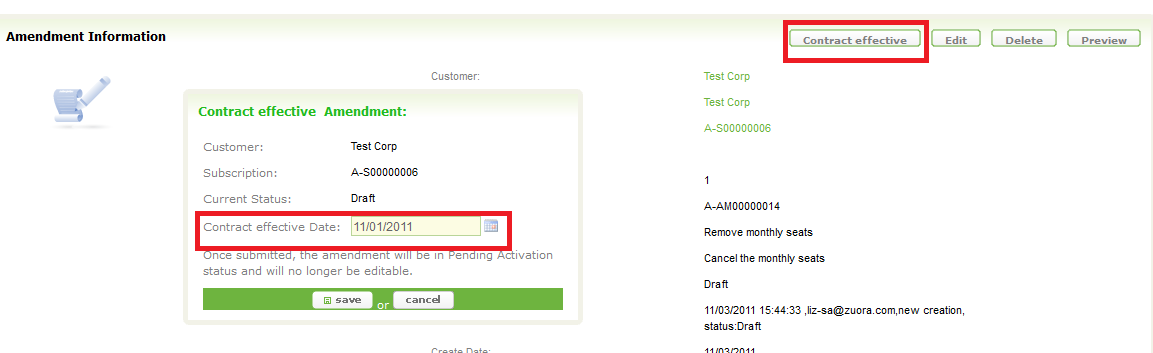
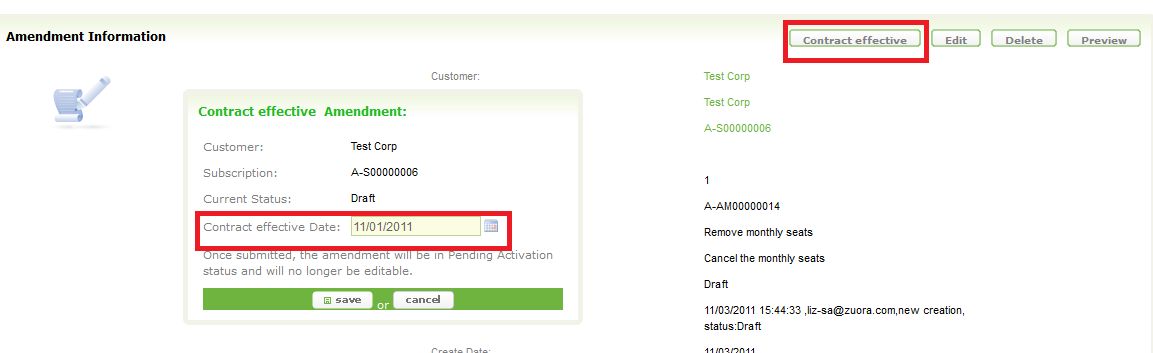
- Click the Contract effective button, enter a Contract effective Date and click Save.
- The contract effective date should be set to the date you want the cancelation or downgrade to take effect.
- In order to ensure no proration this should be the first day of the next invoice period or the first day of the next term, depending on if you want to cancel or downgrade at the end of the last invoice period or end of term.
- In this example the current invoice period for this product extends from 10/01/2011-10/31/2011 and the next invoice period for this product begins on 11/01/2011, so we set the contract effective date to 11/01/2011.
- If you have Service Activation and Customer Acceptance dates enabled then click the Service Activation button, enter the Service Activation Date and click Save, then click the Customer Acceptance button, enter the Customer Acceptance Date and click Save..
- If you are performing a downgrade, execute an Add Product amendment using the same dates as the Remove Product amendment, which will make the new product effective the first day of the next invoice period or term.
- When a bill run is executed with a target date greater than the Contract effective/Service activation/Customer acceptance Date and outstanding charges for the removed product will be invoiced (if applicable) and there will be no credits, refunds or prorations for existing charges related to the removed product.
- Note: You may cancel the remove product amendment if the subscription has not been invoiced through the Contract effective/Service activation/Customer acceptance Date. Once an invoice has been generated through that date it is not possible to delete the cancelation.


Cancel or Downgrade Product: No refund via API
Refer to the API Documentation for Removing a Product and follow the instructions based on your WSDL version.
You must set the ContractEffectiveDate and EffectiveDate fields (and also the ServiceActivationDate and CustomerAcceptanceDate fields if enabled) to the correct date to ensure there are no refunds, credits or prorations.
- The contract effective, effective, service activation and customer acceptance dates should be set to the date you want the cancelation or downgrade to take effect.
- In order to ensure no proration this should be the first day of the next invoice period or the first day of the next term, depending on if you want to cancel or downgrade at the end of the last invoice period or end of term.
- If the current invoice period for the product extends from 10/01/2011-10/31/2011 and the next invoice period for this product begins on 11/01/2011, set the contract effective date to 11/01/2011.
If you are performing a downgrade, then also follow the Adding a Product instructions using the date used in the Removing a Product amendment.
Cancelling a Subscription: No Refund
Use the following steps to cancel the entire subscriptions. See the previous section, "Cancelling or Downgrading a Product: No Refund," to cancel individual products.
Cancel Subscription: No Refund using the Zuora UI
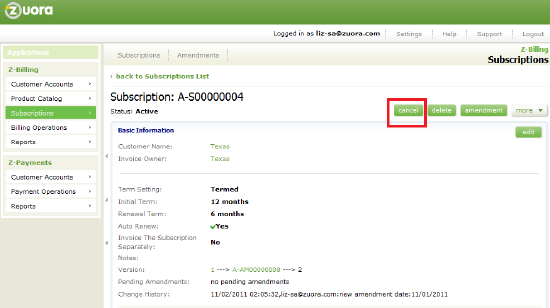
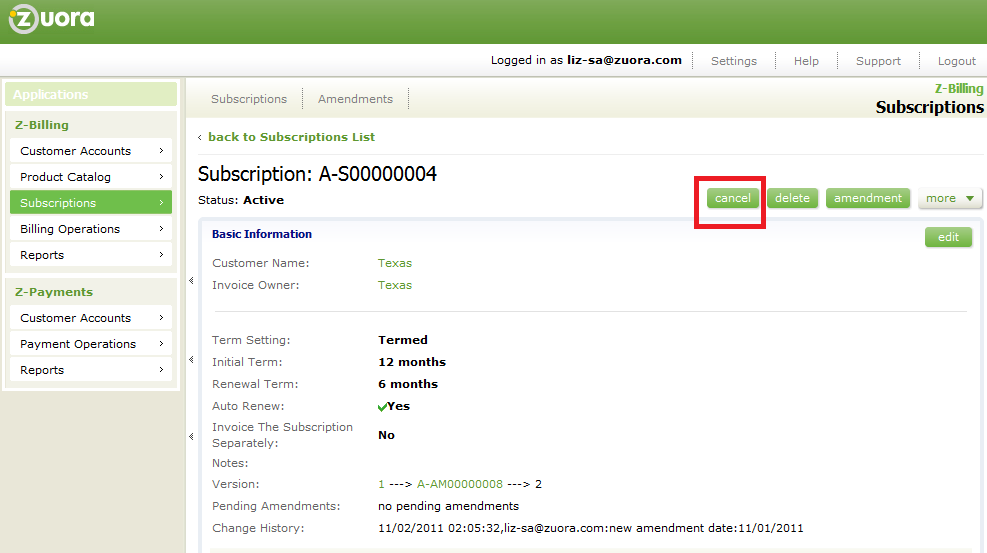
- Click on the subscription you want to cancel.
- Click on the cancel button.
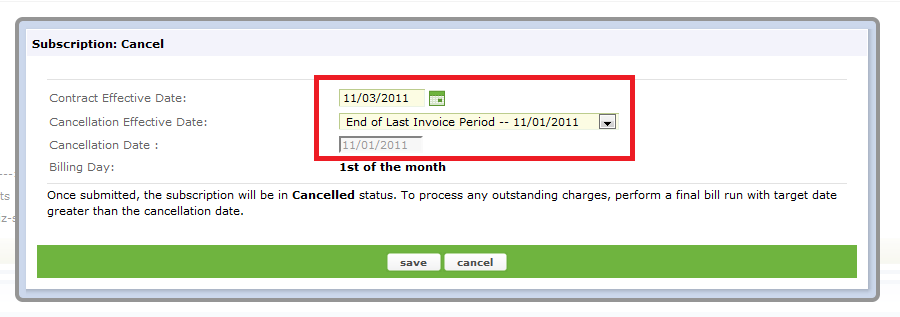
- In the pop up window, enter in the Contract Effective Date.
- Note: This is not the same as the Cancelation Effective Date and won't create the cancelation. It can be used to represent the date the cancelation was requested or executed, the cancelation date, or another business specific date related to the cancelation, however the Cancellation Date set in the next step is the date the cancelation will take effect.
- In the Cancellation Effective Date pull-down menu, select End of Current Term -- mm/dd/yyyy or End of Last Invoice Period --- mm/dd/yyyy. This will automatically set the Cancellation Date to align with the end of the subscription term or end of last invoice period.
- If you have evergreen subscriptions you will only see End of Last Invoice Period and if there are no more invoice periods left in the current term you will only see End of Current Term.
- If you choose End of Term and there are more invoice periods in the term the subscription will continue to invoice until the term is finished.
- If you choose End of Last Invoice Period then the next invoice will be the last invoice and contain all outstanding final charges (if any exist).
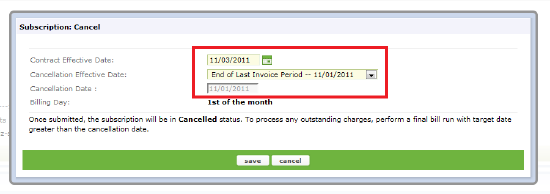
- Click the save button. The subscription is now canceled.
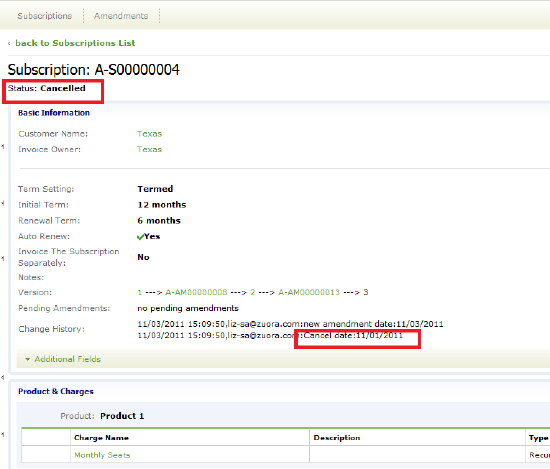
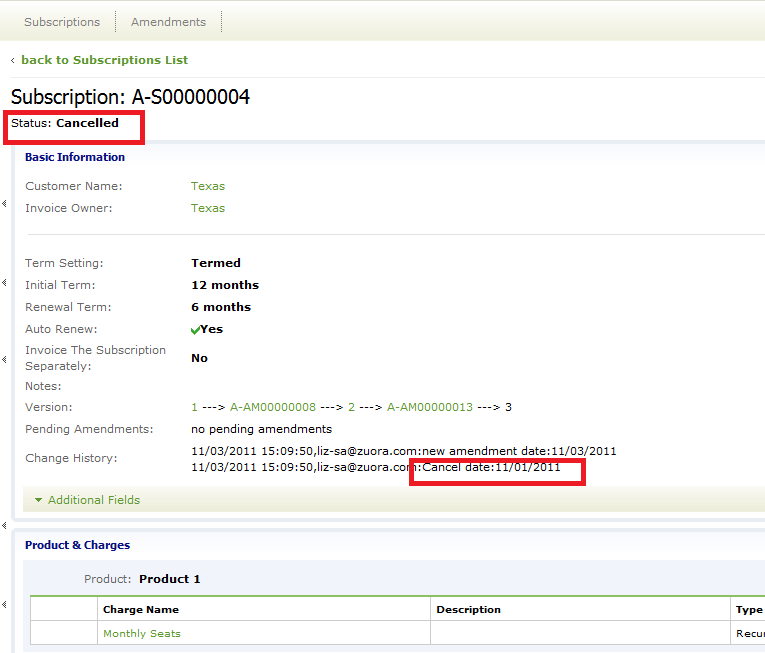
- Execute a bill run with a target date greater than the cancelation date to generate a final invoice for any outstanding charges and there will be no credits, refunds or prorations for the existing charges.
- Note: You may cancel the cancelation amendment if the subscription has not been invoiced through the cancelation date. Once an invoice has been generated through the cancelation date it is not possible to delete the cancelation.
Cancel Subscription: No Refund via API
Please refer to the API Documentation for Cancelling a Subscription and follow the instructions based on your WSDL version.
It is imperative that you set the ContractEffectiveDate and EffectiveDate fields (and also the SerivceActivationDate and CustomerAcceptanceDate fields if enaled) to the correct date to ensure there are no refunds, credits or prorations.
- The contract effective, effective, service activation and customer acceptance dates should be set to the date you want the cancelation or downgrade to take effect.
- In order to ensure no proration this should be the first day of the next invoice period or the first day of the next term, depending on if you want to cancel or downgrade at the end of the last invoice period or end of term.
- If the current invoice period for the product extends from 10/01/2011-10/31/2011 and the next invoice period for this product begins on 11/01/2011, set the contract effective date to 11/01/2011.